


Make investment choices with the whole picture in mind and set yourself up for long-term success.
Whether retirement is years away or you’re already in it, get clarity on the possibilities and choices.
With an adaptable, flexible, and highly personal plan, you’ll be creating a better future with every choice.
Meet the Griffin Black team
Proudly serving the greater Bay Area
Cross-border wealth management

Not all advisors are alike
Workshops and seminars
Performance and events
Altruist, Tax Planning, Security
If your account is held with Altruist LLC, the Altruist Client app provides access to your account, tax statements, and trade confirmations. See account information for balances, holdings, activity, and order status.
When funding an account by check, it’s important to follow the instructions outlined below. Doing so helps ensure timely processing and avoids unnecessary delays. If the instructions aren’t followed, the check may be returned to the sender or to the address of record. You should always keep a copy of submitted checks for 7 business days until funds are deposited.
Please make sure each check meets the following criteria:
Certified Mail Recommended: To ensure secure delivery and tracking, we recommend sending checks via certified mail.
For regular mail, mail checks to:
Altruist Financial LLC
PO Box 219069
Kansas City, MO 64121-9069
For overnight mail, mail checks to:
Altruist Financial LLC
801 Pennsylvania Ave
Suite 219069
Kansas City, MO 64105-1307
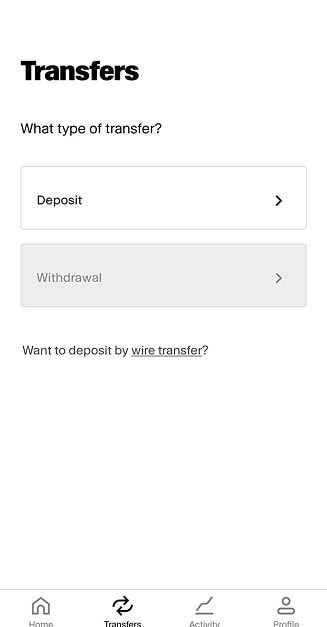
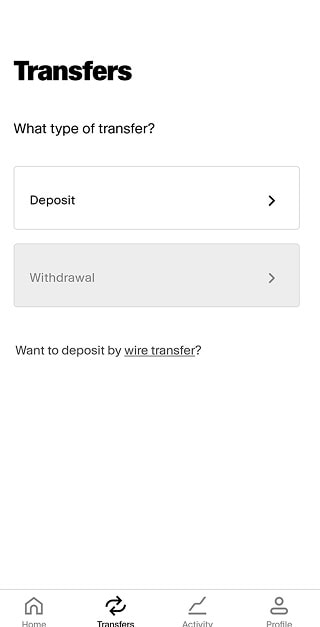
Open the Altruist mobile app and navigate to the Transfers tab.
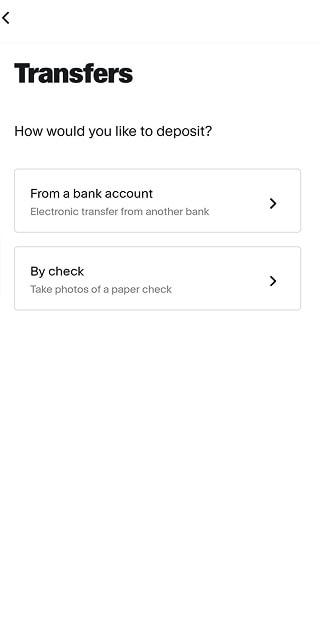
Select Deposit
Select By check. Select the destination account.
Note: If depositing into a retirement account, select the Contribution Reason and the Contribution Year.
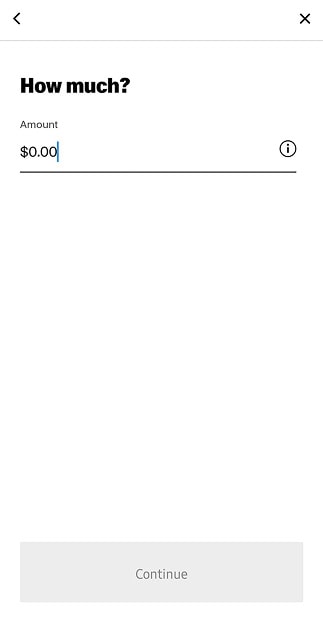
Enter the deposit amount.
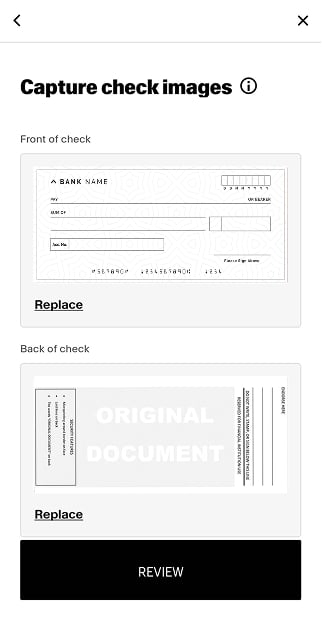
Follow the prompts to allow the app to access your phone’s camera. Then capture the front and back of your check.
Note: Position the check flat against a dark, solid-colored background. Make sure all four corners of the check are visible and the image is in focus.
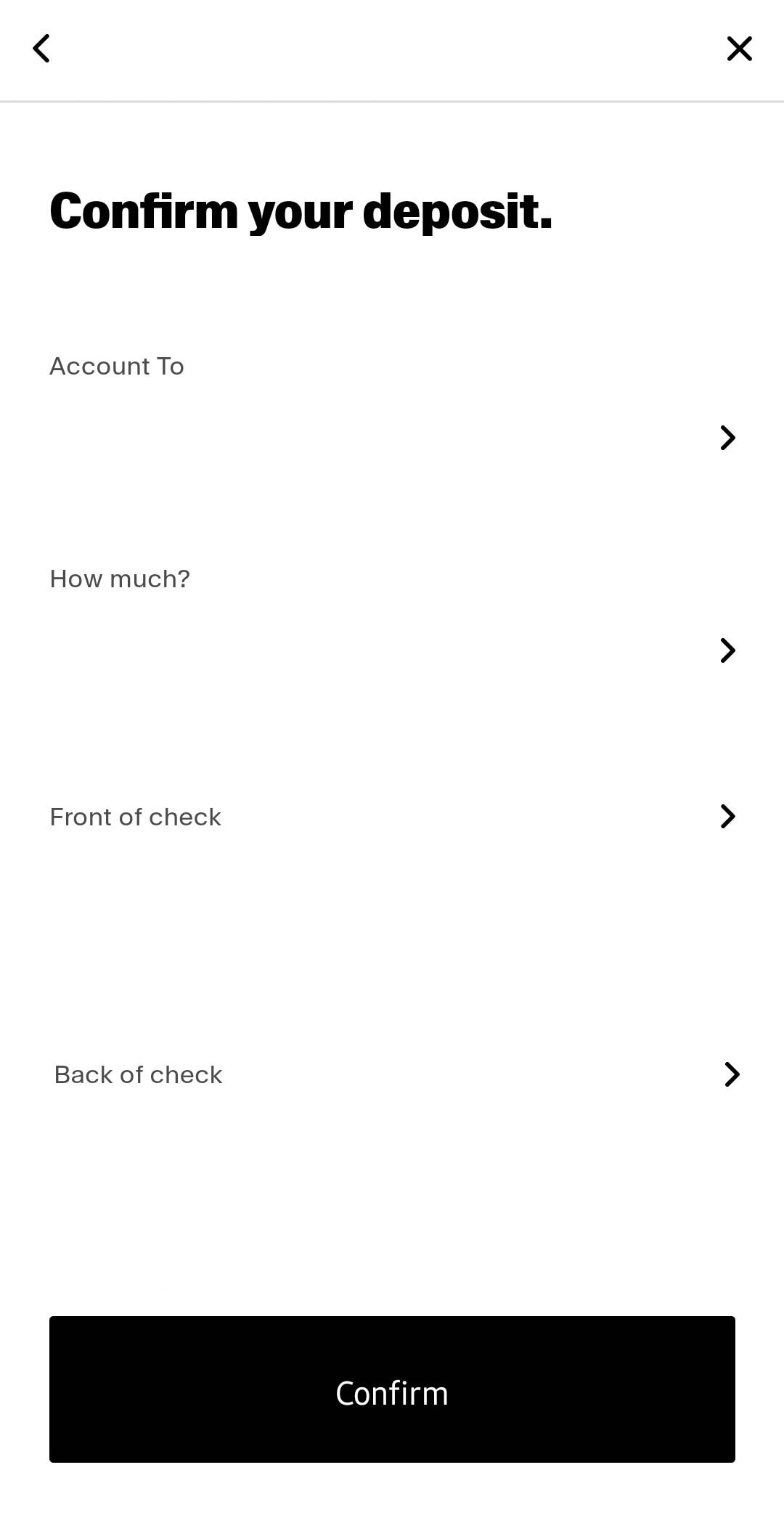
Review your deposit details on the confirmation screen. When you’re ready to proceed, click Submit.